Bluetooth Not Connecting? How to Fix Common Pairing Problems
While Bluetooth normally pairs quite easily, sometimes devices don't connect - here are some easy solutions to fix Bluetooth pairing problems.
Bluetooth Tutorial / Summary Includes:
Bluetooth technology basics
How Bluetooth works
Bluetooth Classic: how it works
Bluetooth Low Energy: how it works
File transfer
Bluetooth profiles
Pairing & networking
Security
Bluetooth 2 EDR
How to connect Bluetooth devices
How to troubleshoot Bluetooth pairing problems
Loudspeaker teardown
We’ve all been there, myself included: you turn on your favourite pair of wireless earbuds or set up a Bluetooth speaker, but your phone or laptop simply refuses to acknowledge it even exists.
While Bluetooth technology has come a long way, and I've noticed on a number of modern devices, how much easier pairing is. However pairing hiccups are still incredibly common, but often the fixes are very easy.
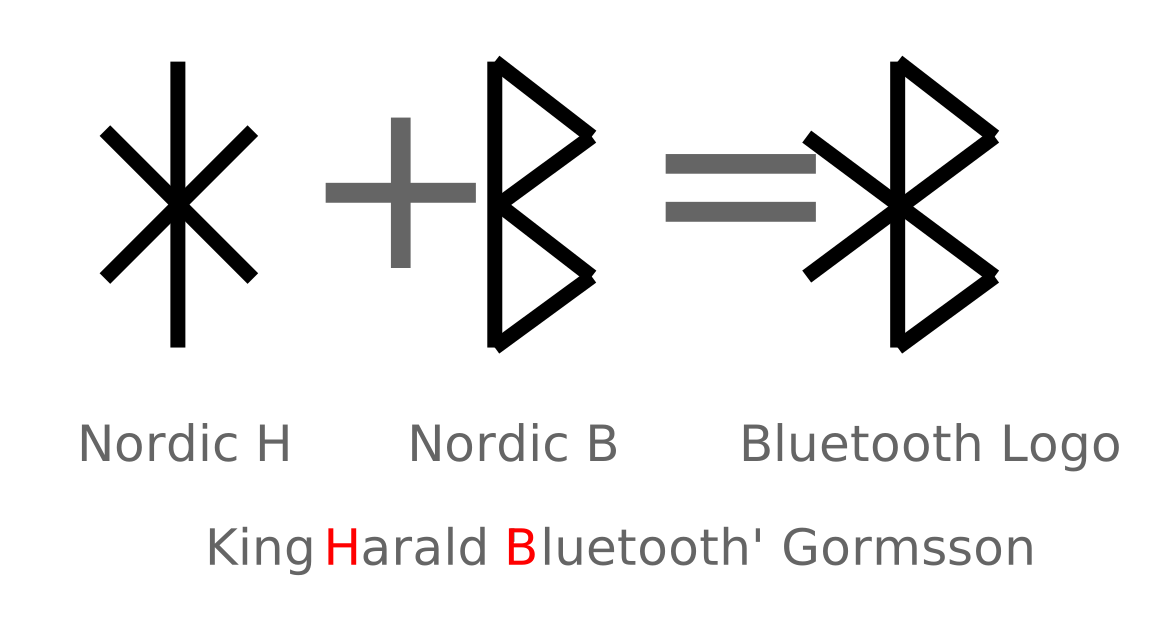
If you are struggling to get your wireless gear to cooperate, fear not. This comprehensive troubleshooting guide will walk you through the most effective ways to fix Bluetooth connection issues on phones, laptops, and other devices.
First it might be worth checking out the basic pairing process as given in my video below:
Video: How to Connect & Pair Bluetooth Devices:- speakers, headphones, earbuds, etc . .
1. The Quick-Fix Checklist (Start Here)
Before worrying about the deeper and more complicated issues and settings, first, rule out the most common (and easily fixed) oversight errors:
Check the Battery: Many Bluetooth devices automatically disable their pairing radios if their battery falls below 10% or 20% to conserve power. Plug them in for 15 minutes and try again.
Toggle Bluetooth Off and On: On your host device (phone or laptop), toggle the Bluetooth radio off, wait 5 seconds, and turn it back on. This forces the system’s background Bluetooth services to restart.
Distance Matters: Ensure your devices are within 3 to 5 feet of each other during the initial pairing process. Once paired, you can move further apart.
Move Away from Interference: It is surprising how much interference can be generated and this can interfere with the Bluetooth link. Wi-Fi routers and microwave ovens share the same frequency band as Bluetooth. It also possible that USB 3.0 cables can interfere with the 2.4 GHz wireless spectrum that Bluetooth uses.
If there is an issue, moving away from these sources of interference can be an easy way to solve the problem.
Go to smartphone / laptop settings and reconnect: Sometimes the device may be sitting there waiting for your laptop or smartphone to connect to it, even if it has been connected before. Just go to Settings >> Bluetooth and there will often be a list where you will be able to press connect. Sometimes my smartphone and headphones don't connect and this is all I need to do.
2. Master "Pairing Mode" vs. "Power On"
One of the most common reasons for Bluetooth devices failing to connect to a new phone or laptop is that the device is turned on, but it is not in Pairing Mode.
When you simply turn a pair of headphones on, they look for the last device they were connected to. If they can't find it, they often just sit in standby mode, invisible to new devices.
How to Force Pairing Mode on Most Devices:
Wireless Earbuds: Place the earbuds inside their charging case and leave the lid open. Press and hold the physical button on the back or inside of the case for 3 to 5 seconds until the LED light starts pulsing or flashing rapidly. Obviously different devices may be different, but this can be useful in many instances.
Bluetooth Speakers & Headphones: Look for a dedicated Bluetooth symbol button, or there may be a turn on button with a special pairing position. Press and hold it down for several seconds. You will usually hear an audio cue (like a series of beeps or a voice saying "Pairing"), and the status light will flash.
Different devices will be different, so read the instructions for the particular device and make sure it is in pairing mode.
Rule of Thumb: If the status light on your speaker or earbuds is solid or blinking very slowly, it is **not** in pairing mode. It must be flashing rapidly to be discoverable.
3. Disconnect from the "Secret" Owner
Bluetooth devices usually like to be exclusive. If your earbuds are actively connected to your iPad in the drawer, they will completely ignore your smartphone or laptop.
If your device refuses to show up in a new scan:
- Turn off the Bluetooth radio on nearby tablets, old phones, or computers that you have previously paired with those earbuds.
- Once the "secret" connection is severed, put your earbuds back into pairing mode and try searching on your new device again.
4. How to Reset and "Forget" the Connection
If a device used to connect perfectly but suddenly stopped working, the cached connection data may have become corrupted. You need to wipe the slate clean.
This is very easily done:
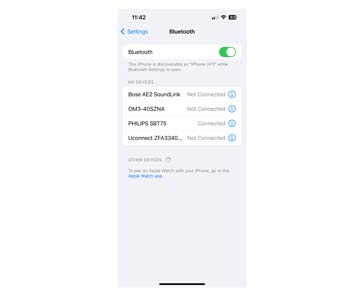
Step 1: "Forget" the Device on the Host
Before trying to re-pair, you must tell your phone or laptop to erase the old connection memory.
| Platform | Navigation Path | Action |
|---|---|---|
| iPhone / iPad | Settings > Connected Devices > Connection Preferences > Bluetooth | Tap the "i" icon next to the device name, then select 'Forget This Device'. |
| Android | Settings > Connected Devices > Connection Preferences > Bluetooth | Tap the Gear icon next to the device, then select 'Forget' or 'Unpair'. |
| Windows Laptop | Settings > Bluetooth & devices > Devices | Click the three dots next to the device, then select 'Remove device'. |
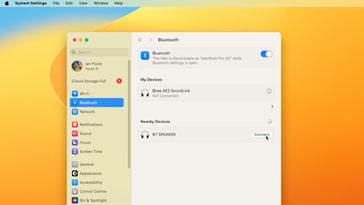
| MacBook | System Settings > Bluetooth | Click the "i" icon next to the device, then select 'Forget This Device'. |
Step 2: Factory Reset the Bluetooth Accessory
Many audio devices allow you to reset their internal memory entirely. Consult your manual for exact steps, but the universal method for many earbuds is to place them in the case and hold the main button down for 10 to 15 seconds until the indicator light flashes a specific color (often red or amber), signaling a full factory reset.
Once both steps are complete, try pairing them from scratch.
5. Advanced Laptop Fixes: Driver Issues
If you are experiencing issues specifically on a laptop while your phone connects to the audio device perfectly, the culprit is likely a corrupted or outdated computer driver.
This may appear to be a little more involved, so if you are unsure, seek or help advice first.
For Windows Users:
- Right-click the Windows Start button and select Device Manager.
- Click the arrow next to **Bluetooth** to expand the list.
- Right-click your main Bluetooth adapter (often named Intel Wireless Bluetooth or Realtek Bluetooth Adapter).
- Select 'Update driver' and choose "Search automatically for drivers."
- If that fails, select *Uninstall device, restart your laptop, and Windows will automatically reinstall a clean version of the driver upon boot-up.
For Mac Users:
Apple handles Bluetooth drivers automatically, but you can reset the entire Bluetooth module via macOS Terminal if it locks up:
- Open Terminal (via Spotlight Search).
- Type the following command and press Enter: sudo pkill bluetoothd
- Enter your Mac password to confirm. This forces the internal Bluetooth background process to completely restart.
Summary: The Golden Rule of Bluetooth
Whenever you are stuck, remember the classic three-step sequence: **Forget, Reset, Re-pair.** Erase the device from your phone or laptop's memory, factory reset the earbuds or speaker to clear its internal cache, force it into a rapid-flashing pairing mode, and start fresh.
 Written by Ian Poole .
Experienced electronics engineer and author.
Wireless & Wired Connectivity Topics:
Mobile Communications basics
2G GSM
3G UMTS
4G LTE
5G
Wi-Fi
Bluetooth
IEEE 802.15.4
DECT cordless phones
Networking fundamentals
What is the Cloud
Ethernet
Serial data
USB
LoRa
VoIP
SDN
NFV
SD-WAN
Return to Wireless & Wired Connectivity