USB-C Decoding Guide: How to Read the Icons on Your Cables and Ports
When using USB-C ports and cables it is essential to understand what the icons mean so that the right cables and interfaces can be used to gain the required performance.
USB Universal Serial Bus Includes:
USB introduction
USB standards
Connectors, pinouts & cables
USB-A connector colour codes
Data transfer & protocol
USB 3
USB-C
USB-C icons and performance indications
USB hubs
How to buy best USB hub
We’ve all been there: you plug your laptop into a USB-C cable, but instead of charging, it just sits there. Or you try to transfer photos from your camera, and it takes an hour for a handful of files.
Why does this happen and you winder if your system is working properly.
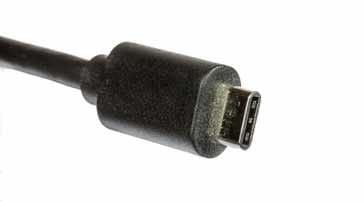
The problem isn't USB-C; the problem is that USB-C is just a shape. What happens inside that shape varies wildly.
To help consumers, the USB Implementers Forum (USB-IF) has created a series of icons to act as "labels" for performance and it is essential to understand these to ensure that the ports and cables provide the capabilities you need.
Deciphering the codes
The codes are marked on the ports and cables, so you can see what capabilities are offered.
Here is how to decipher the codes so you never buy the wrong cable again.
1. The "Speed" Icons (Data Transfer)
On older USB-A ports, there were colours (blue, red, black). With USB-C, there is the SuperSpeed (SS) trident and numbers. These tell you how fast data moves.
| |
||
|---|---|---|
| Icon Label | What it Means | Best For... |
| No Number | USB 2.0 (480 Mbps) | Keyboards, mice, and basic phone charging. |
| SS 5 | 5 Gbps (USB 3.2 Gen 1) | Standard external hard drives. |
| SS 10 | 10 Gbps (USB 3.2 Gen 2) | High-speed SSDs and 4K webcams. |
| SS 20 | 20 Gbps (USB 3.2 Gen 2x2) | Professional storage arrays. |
| 40 or 80 | USB4 or Thunderbolt | Professional video editing and docking stations. |
2. The "Power" Icons (Charging)
Just because a cable fits doesn't mean it can handle the power your laptop needs. Most standard cables are capped at 60W.
If you see a specific wattage on the packaging or the cable itself, it’s an indicator of its Power Delivery (PD) rating.
The Battery/Plug Icon: If the USB trident logo is enclosed in a battery or plug shape, that port is specifically designed for high-power charging.
The "240W" Label: As of 2026, the gold standard is the EPR (Extended Power Range) cable. These are labeled with a "240W" logo and are required for high-end gaming laptops or high-performance workstations.
3. The "Video" Icons (Display)
Have you ever tried to connect your laptop to a monitor via USB-C and got a "No Signal" message? It is possible that the cable doesn't support Alt Mode.
The "D" Icon: Look for a stylized letter D (the DisplayPort logo) next to the port. This confirms the port can send video signals.
Thunderbolt (The Lightning Bolt): If you see a lightning bolt, you don't need to look for anything else. Thunderbolt 3, 4, and the new 5 standards support high-speed data, high-wattage power, and multiple 4K/8K displays through a single cable.
4. The "Simplified" 2026 Labels
To clear up the confusion, the USB-IF has moved away from confusing names like "USB 3.2 Gen 2x2." On newer packaging, you will see simplified, text-based logos that combine speed and power:
- USB 20Gbps / 60W
- USB 40Gbps / 240W
- USB 80Gbps (The newest standard for 2026)
Summary Checklist for Buyers:
Here is a quick summary check list for when you next buy a USB cable, peripheral, etc.
- Check the Logo: If the cable is blank, it's almost certainly a slow USB 2.0 "charging-only" cable.
- Match the Wattage: If your laptop charger is 96W, you must buy a cable labeled "100W" or "240W." A 60W cable will slow down your charging.
- The "Stiffness" Test: High-speed data and 240W cables are physically thicker and stiffer because they require more internal shielding. If it’s thin and flimsy, don't use it for your monitor or SSD.
 Written by Ian Poole .
Experienced electronics engineer and author.
Wireless & Wired Connectivity Topics:
Mobile Communications basics
2G GSM
3G UMTS
4G LTE
5G
Wi-Fi
Bluetooth
IEEE 802.15.4
DECT cordless phones
Networking fundamentals
What is the Cloud
Ethernet
Serial data
USB
LoRa
VoIP
SDN
NFV
SD-WAN
Return to Wireless & Wired Connectivity