
The USB-A Colour Code: Decoding the Plastic Centres
The centre plastic of the widely used USB-A connectors (the large USB connectors) is colour coded & this provides useful information about the connector & the speeds, etc it can support.
USB Universal Serial Bus Includes:
USB introduction
USB standards
Connectors, pinouts & cables
USB-A connector colour codes
Data transfer & protocol
USB 3
USB-C
USB-C icons and performance indications
USB hubs
How to buy best USB hub
The USB-A connector is one of the most common sights associated with computer connectivity and technology.
For decades, it has been the standard interface for connecting keyboards, mice, flash drives, and external hard drives to our computers.
If you look closely at the rectangular ports on your laptop or the ends of your charging cables, you will notice that the plastic "tongue" or centre insulator may be one of a variety of different colours.
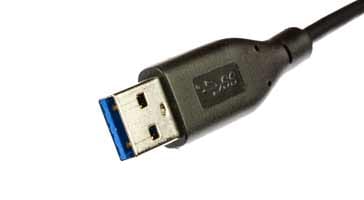
Notice the blue insert on the connector that indicates USB 3
These colours are not mere aesthetic choices by manufacturers. They serve as a standardised indication of the capabilities, speed, and power delivery of the port or cable.
Understanding these colour codes can save you from the frustration of slow data transfers or sluggish charging speeds.
Evolution of the USB-A Standard
The Universal Serial Bus (USB) was developed in the mid-1990s to replace a messy array of serial and parallel ports.
As the technology evolved, the physical shape of the USB-A remained largely the same to maintain backward compatibility, but the internal hardware improved drastically.
Because a USB 2.0 port looks identical to a USB 3.0 port from the outside, the industry adopted a colour-coding system to help users distinguish between the generations of technology hidden within the metal shroud.
Guide to USB-A Connector Colours
Here is a breakdown of the most common colours found in USB-A connectors and what they denote regarding speed and functionality:
White (USB 1.x): The original standard. White plastic centers typically denote USB 1.0 or 1.1. These are now largely "legacy" ports. They are incredibly slow by modern standards, with a maximum data rate of 12 Mbps. You will mostly see these on very old hardware or simple peripherals like keyboards and mice where high speed isn't required.
Black (USB 2.0): Introduced in 2000, the black center became the industry standard for over a decade. USB 2.0 High Speed supports up to 480 Mbps. While much faster than the white ports, they are still significantly slower than modern iterations. They remain common on budget laptops and desktop PC "accessory" ports.
Blue (USB 3.0 / USB 3.1 Gen 1): The blue center is arguably the most important colour to look for. It signifies "SuperSpeed" USB. A blue port supports data transfer rates up to 5 Gbps. This is the standard for modern external hard drives and high-speed flash drives.
Teal / Light Blue (USB 3.1 Gen 2): As speeds increased to 10 Gbps, some manufacturers adopted a teal or slightly different shade of blue to distinguish "SuperSpeed+" (USB 3.1 Gen 2) from the standard 3.0 blue ports.
Red or Orange (High-Retention or High-Power): Red or orange ports often signify that the port is capable of delivering higher amperage for fast charging. In some industrial contexts, red can also denote a "high-retention" port designed to hold the cable more securely so it doesn't vibrate loose.
Yellow (Sleep-and-Charge / Always On): A yellow plastic center usually indicates a "Sleep-and-Charge" port. Most USB ports stop providing power when the computer is turned off or in sleep mode. A yellow port remains powered, allowing you to charge your smartphone or tablet even if your laptop is closed.
Green (Quick Charge): While less common on computers and more frequent on wall chargers, green often denotes compatibility with specific fast-charging standards, such as Qualcomm Quick Charge.
Why Does Colour Matter?
Using the wrong port can significantly impact your workflow. If you plug a modern USB 3.0 external SSD (which is capable of moving gigabytes of data in seconds) into a Black (USB 2.0) port, your transfer speeds will be "bottlenecked" by the port’s hardware.
You might see a 5Gbps drive struggling at 480 Mbps — roughly 10 times slower than its potential.
Conversely, knowing that a Yellow port is "Always On" can be a lifesaver during travel, allowing you to use your laptop as a power bank without needing to keep the screen on and the system running.
The Anatomy of the Connector
The transition from USB 2.0 (Black) to USB 3.0 (Blue) involved more than just a colour change. If you look inside a blue USB-A connector, you will notice it has nine pins instead of the standard four found in black connectors.
The original four pins (Power, Ground, and two Data lines) remain in their usual positions at the front to ensure that a USB 2.0 device can still function in a USB 3.0 port. However, five additional pins are tucked further back in the housing to handle the high-speed "SuperSpeed" data lanes. The blue plastic serves as a warning: if you want the high speed, you need both a blue port and a cable with those extra internal wires.
Pro-Tip
Beware because manufacturers don't always follow the rules. Some brands use proprietary colours (like Razer’s green or Kraft’s purple).
When in doubt, look for the SS (SuperSpeed) logo next to the port if you need high speed data transfers.
The Future: The Decline of Colour Coding?
With the rise of USB-C, the industry is moving away from the "A-type" rectangular connector and, with it, the reliance on colour-coded plastic.
USB-C connectors are identical on both sides and usually rely on small icons (like a lightning bolt or a "10" for 10 Gbps) printed next to the port rather than the colour of the plastic inside.
However, for the millions of USB-A devices currently in use, these colours remain the most reliable way to tell at a glance what your hardware is capable of. Next time you go to plug in a drive, look for the blue—your transfer speeds will thank you.
 Written by Ian Poole .
Experienced electronics engineer and author.
Wireless & Wired Connectivity Topics:
Mobile Communications basics
2G GSM
3G UMTS
4G LTE
5G
Wi-Fi
Bluetooth
IEEE 802.15.4
DECT cordless phones
Networking fundamentals
What is the Cloud
Ethernet
Serial data
USB
LoRa
VoIP
SDN
NFV
SD-WAN
Return to Wireless & Wired Connectivity